
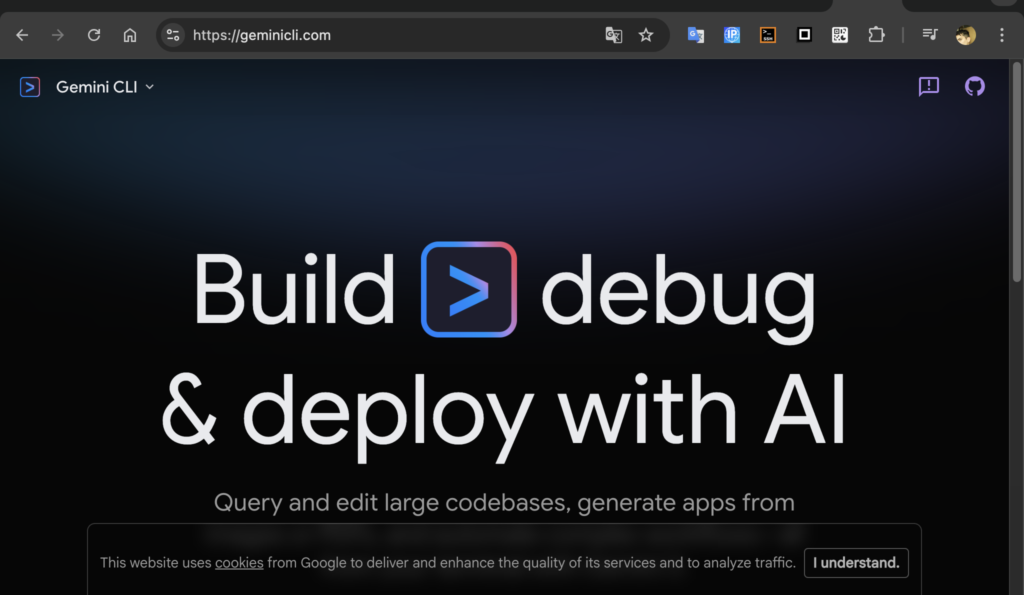
To run Gemini from the console or tty, you must install “google Gemini CLI”
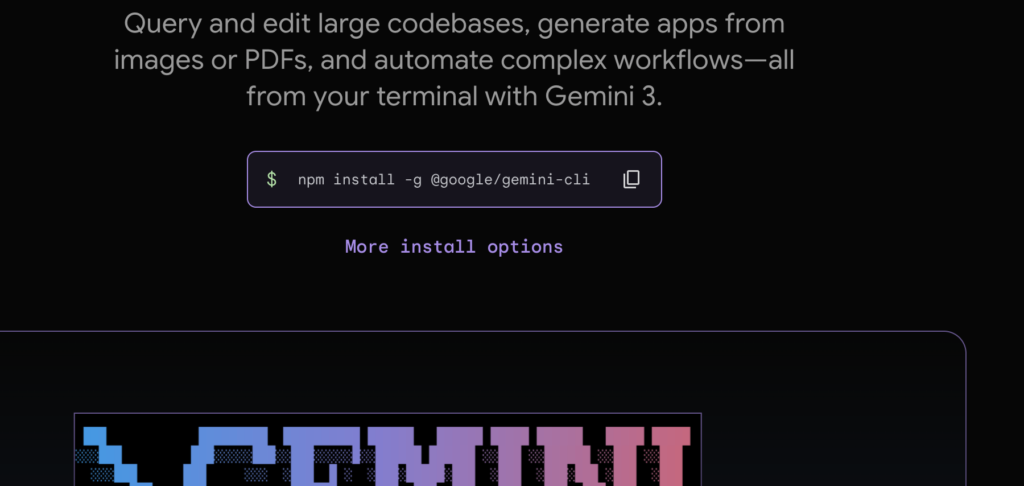

the command is:
npm install -g @google/gemini-cli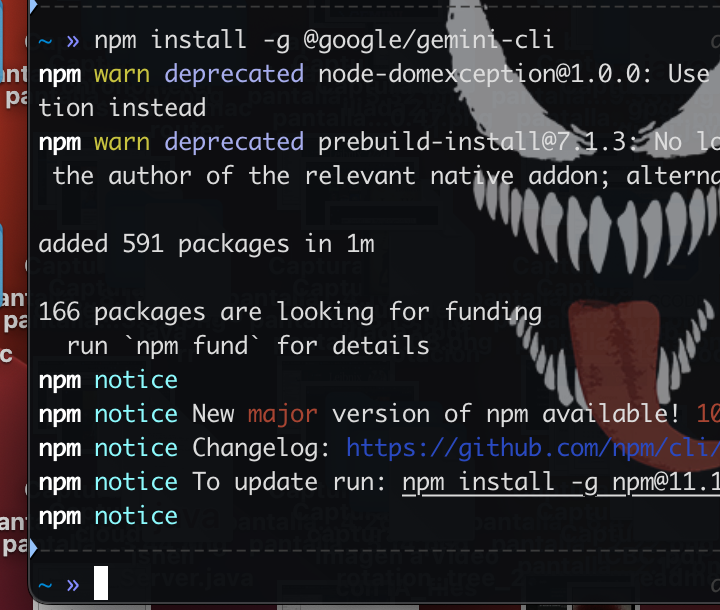
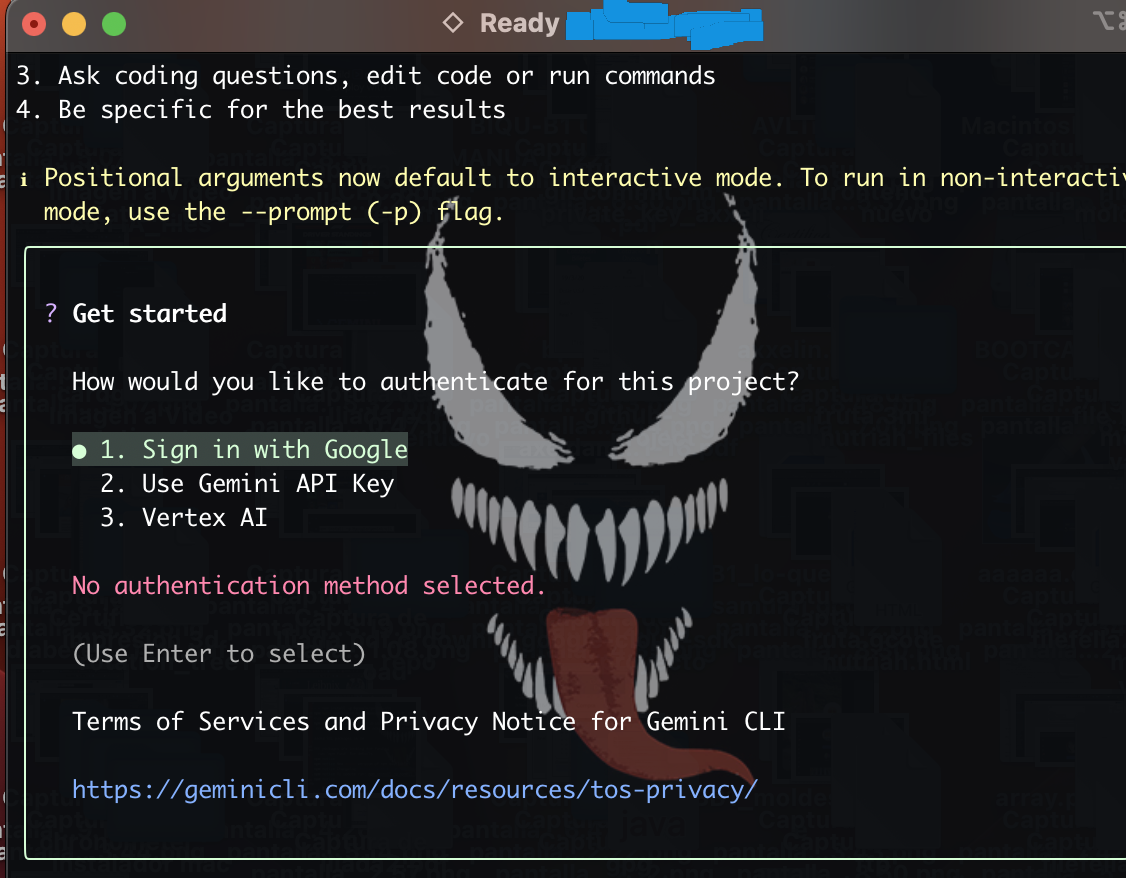
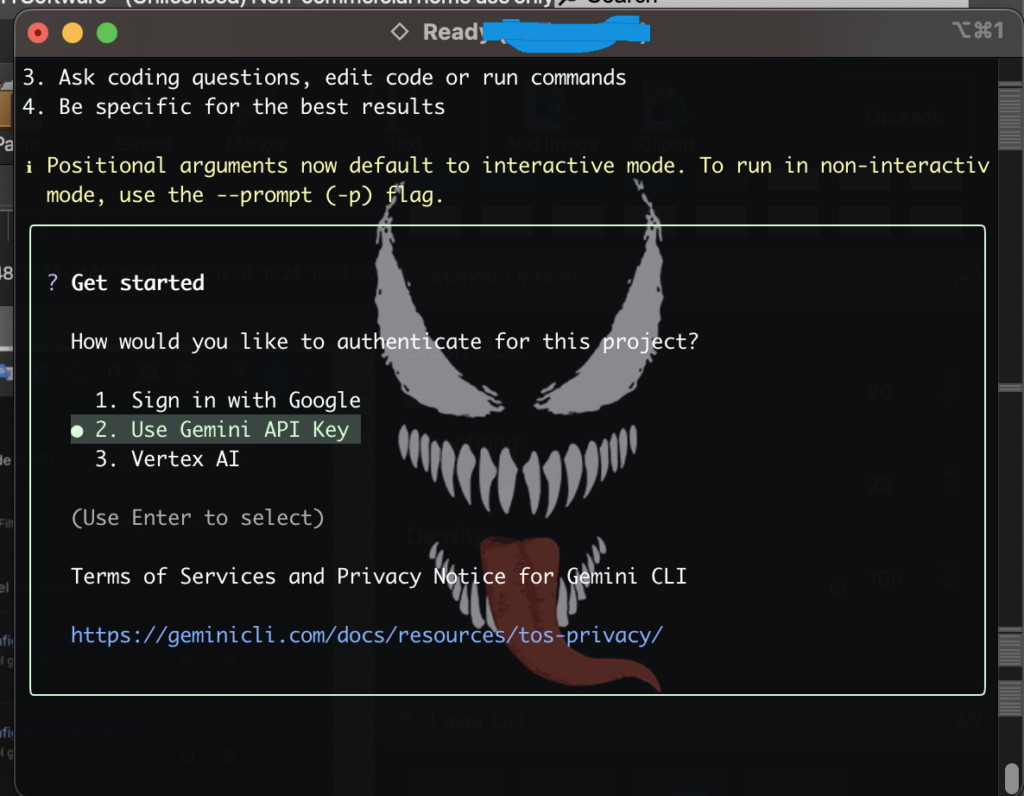
google gemini api key
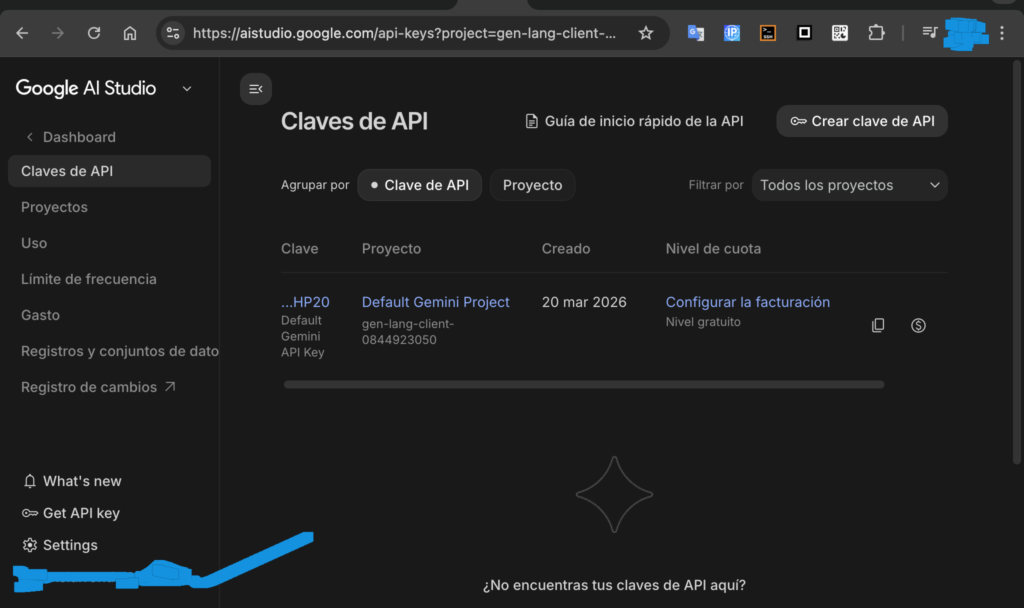
You need to get a Gemini API key if you don’t want to log in with your personal Google account.
Similarly, you shouldn’t share the API key with anyone; it’s private. It’s to avoid logging in with your account. You can use the API key without logging in, and it will still be known that it’s you.
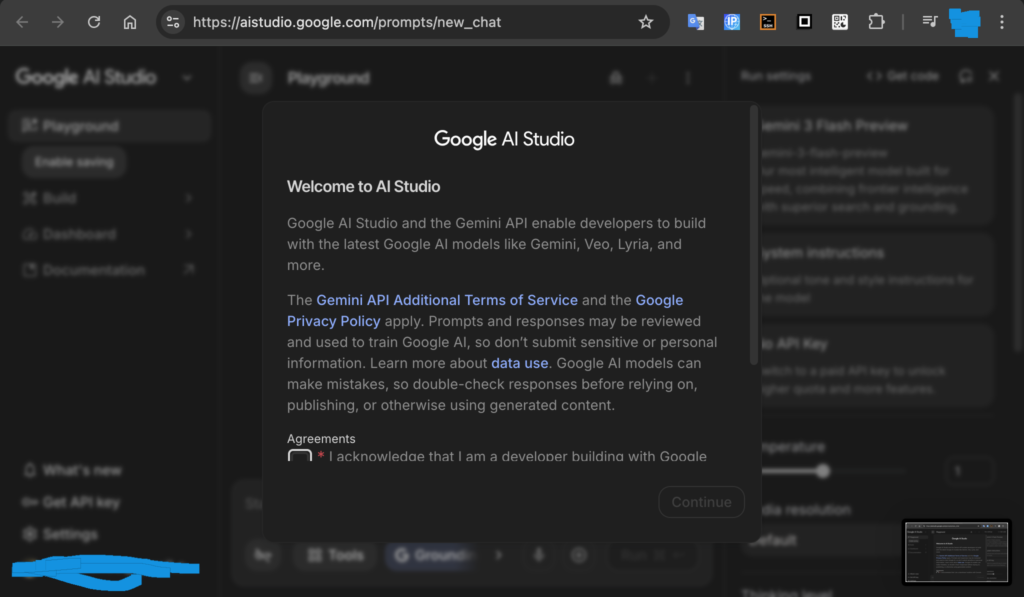
enter in web:
http://aistudio.google.com/prompts/new_chat
Since you just installed gemini-cli, you’ll absolutely need it for the command to work. Without that key, Google’s server doesn’t know who’s making the query or if they have permission to respond.
It’s important to mention that the API key is free if it’s for personal use, not for a repetitive script that queries Gemini several times per minute.
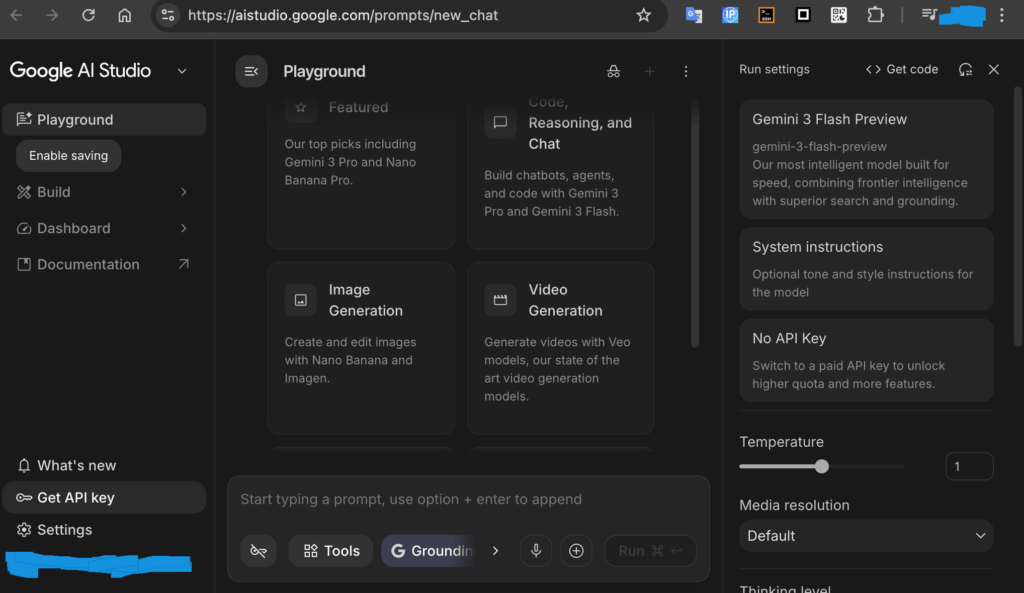
You generate/create the Gemini API key from the menu on the left.
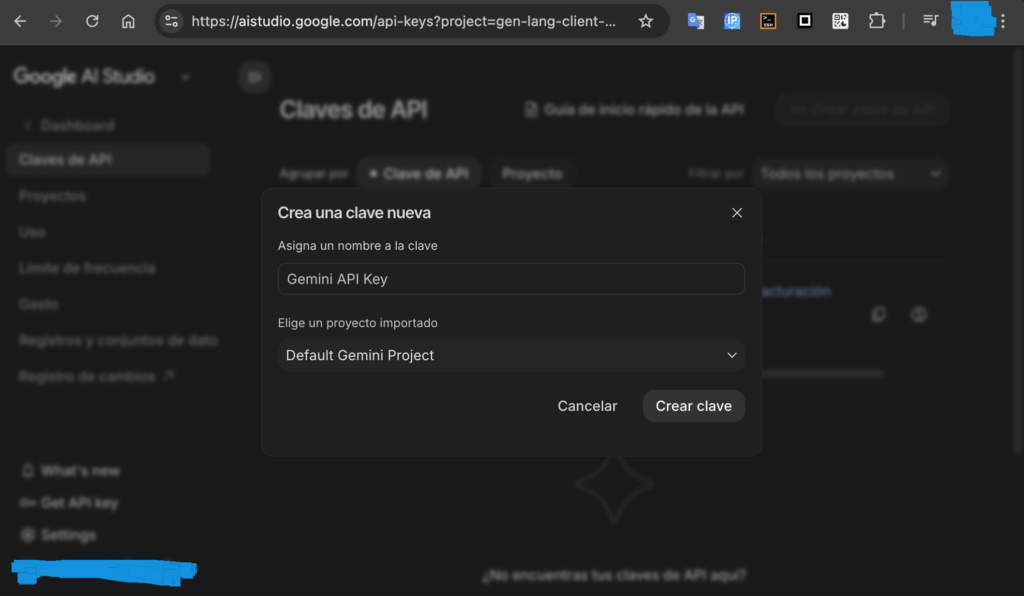
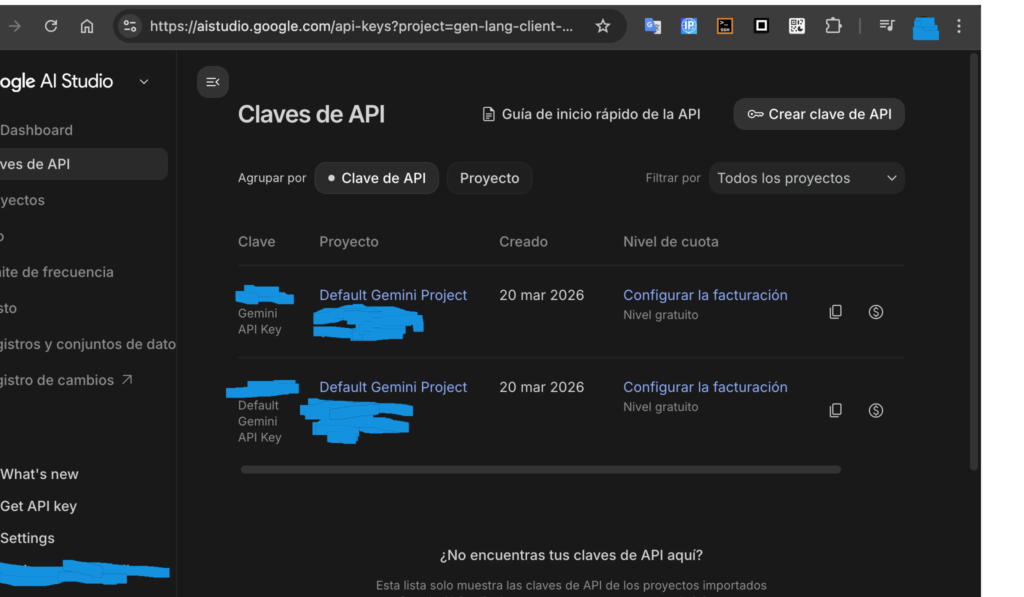
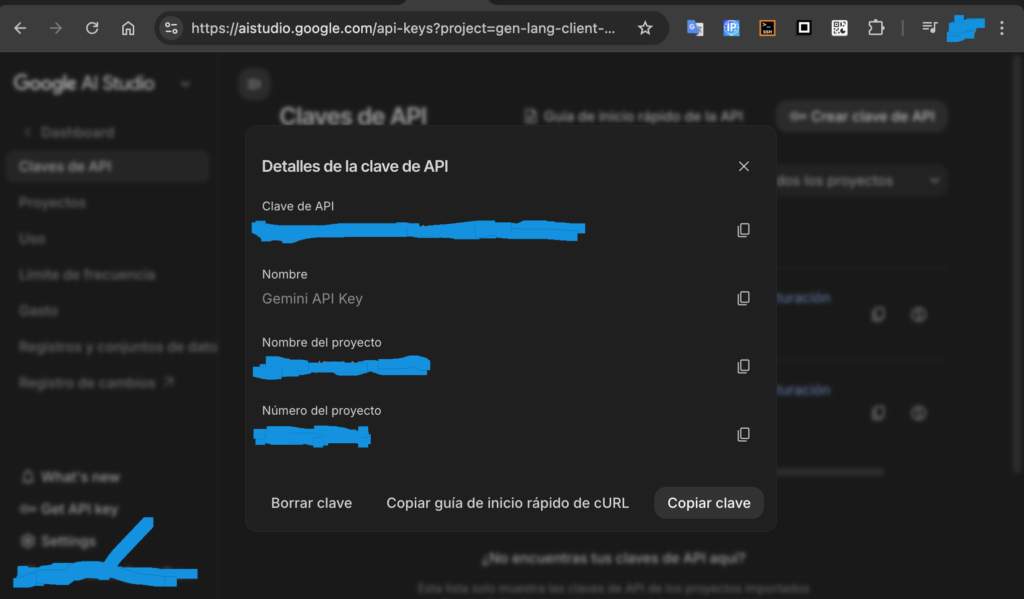
configure .zshrc or .bashrc
This is so that the console can accept the “gemini” command
execute the command: (to know the directory where was installed)
npm config get prefixreturned:
/usr/local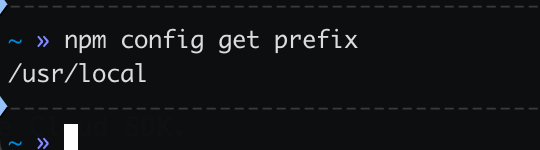
in .zshrc or .bashrc located in ~:
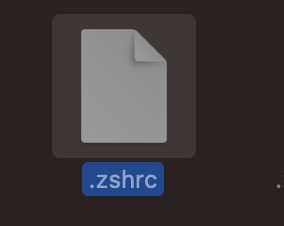
added it (to the end):
/bin
the content is:
export GEMINI=/usr/local/binexecute in console, located in ~:
source ~/.zshrcThen, the “gemini” command will be recognized
Configure the Gemini API key in the terminal, in the Gemini CLI (write gemini CLI command to open it)
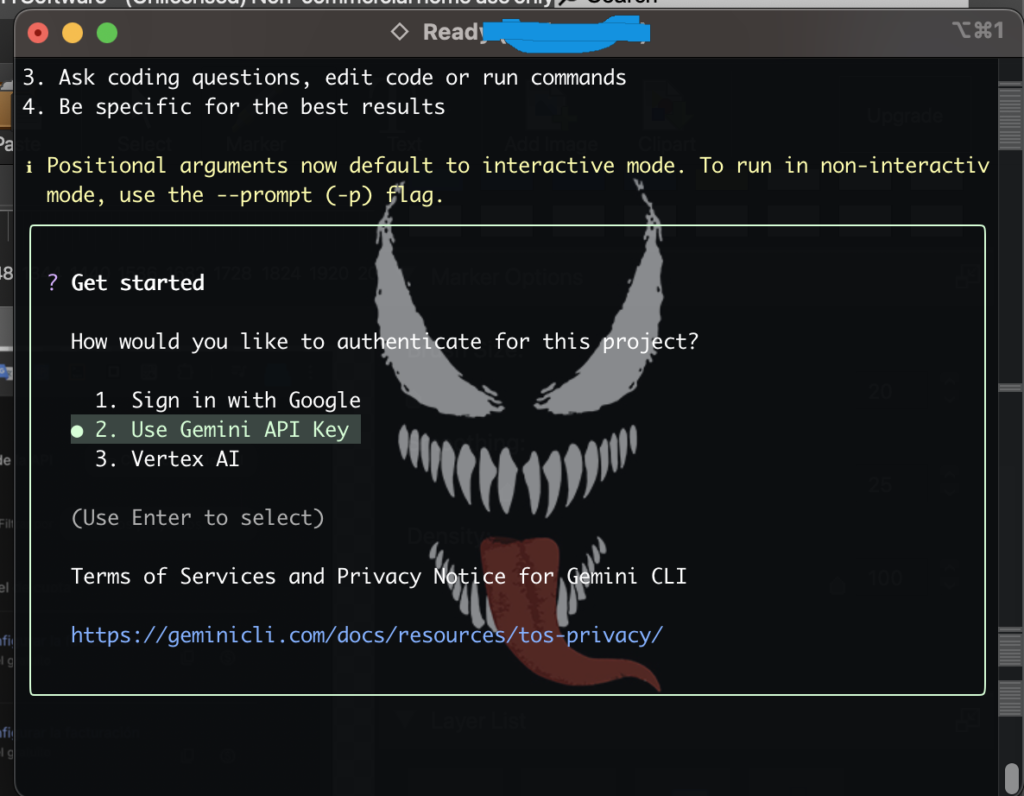
put the gemini api key (from the web, the gennerated) in the console (gemini CLI):
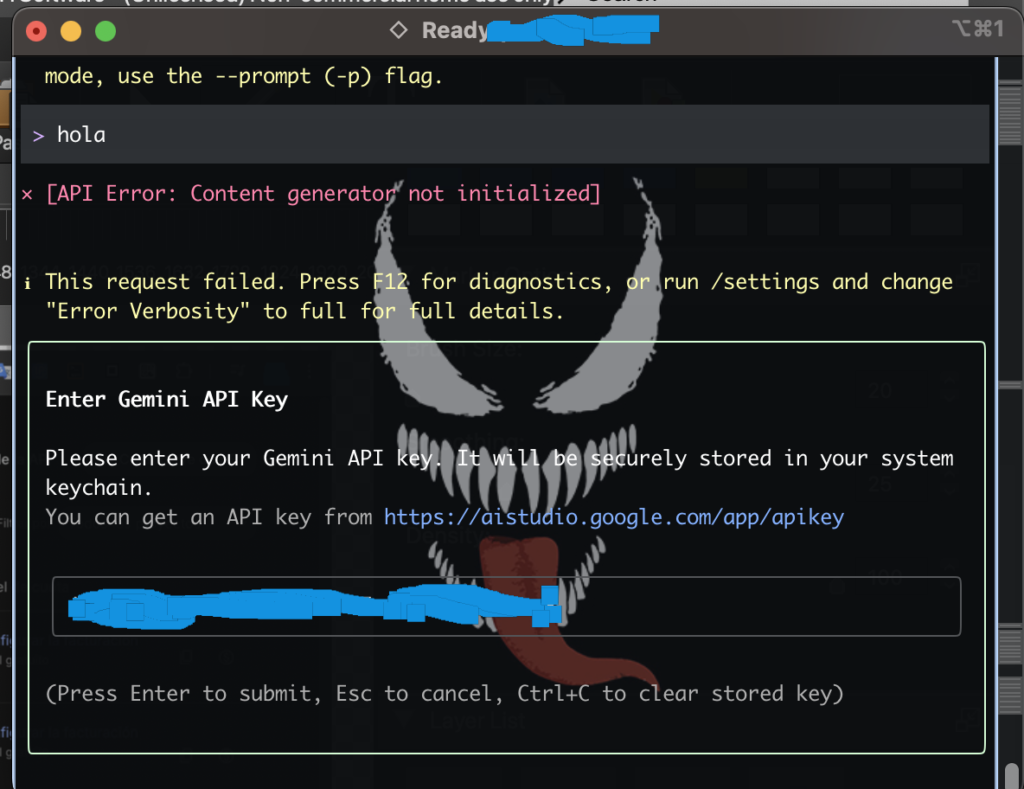
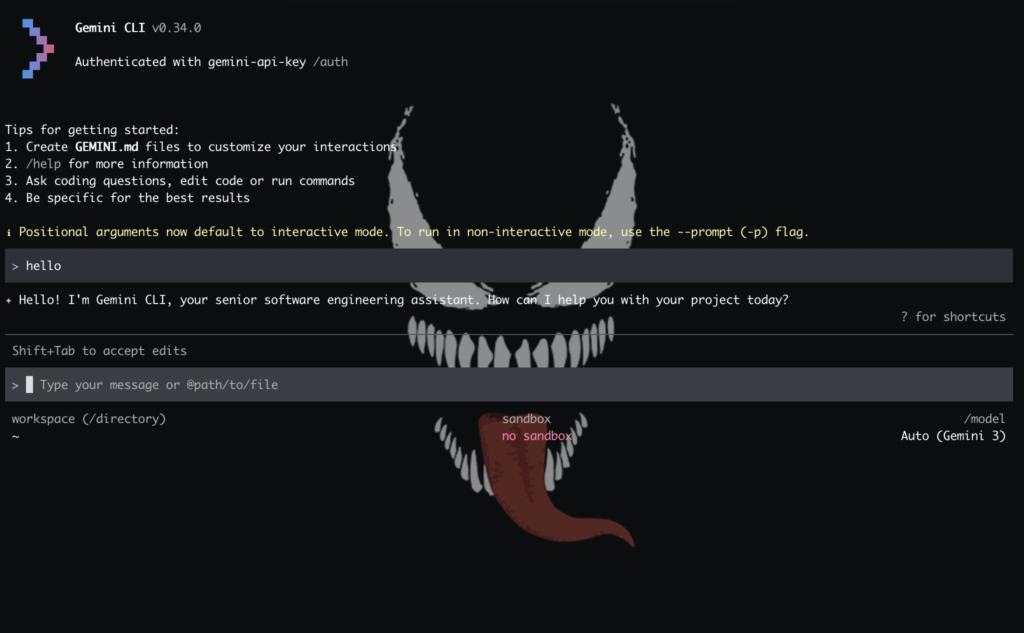
and speak in the console:
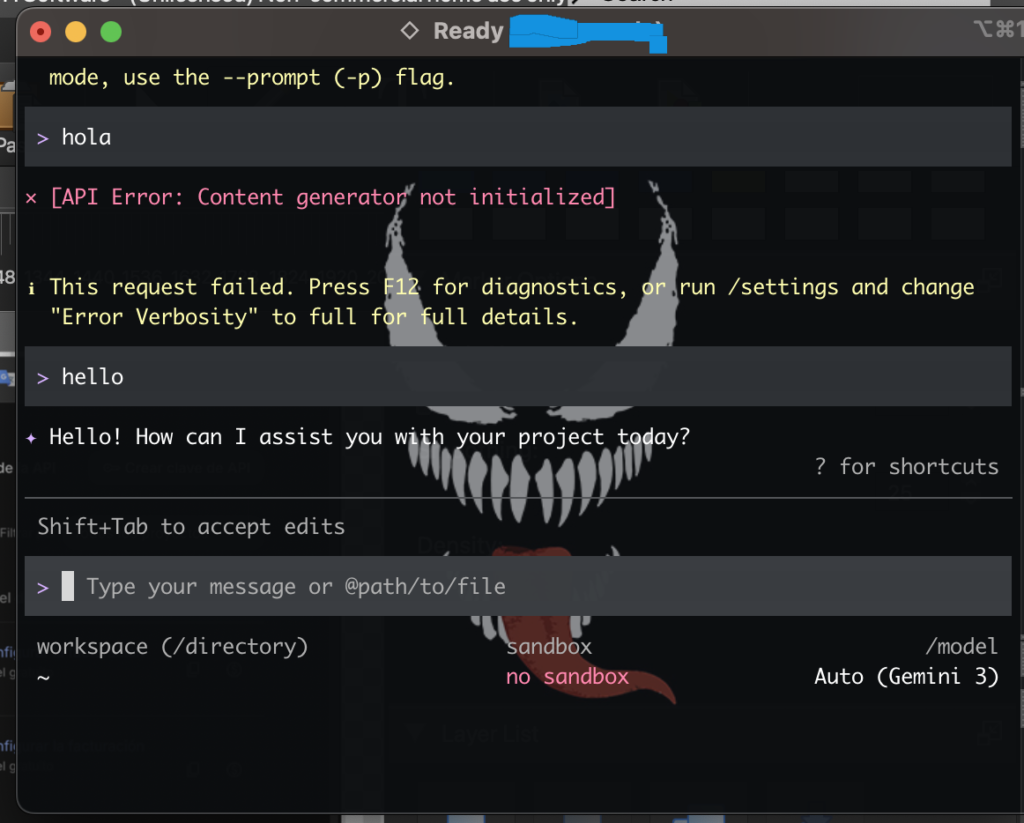
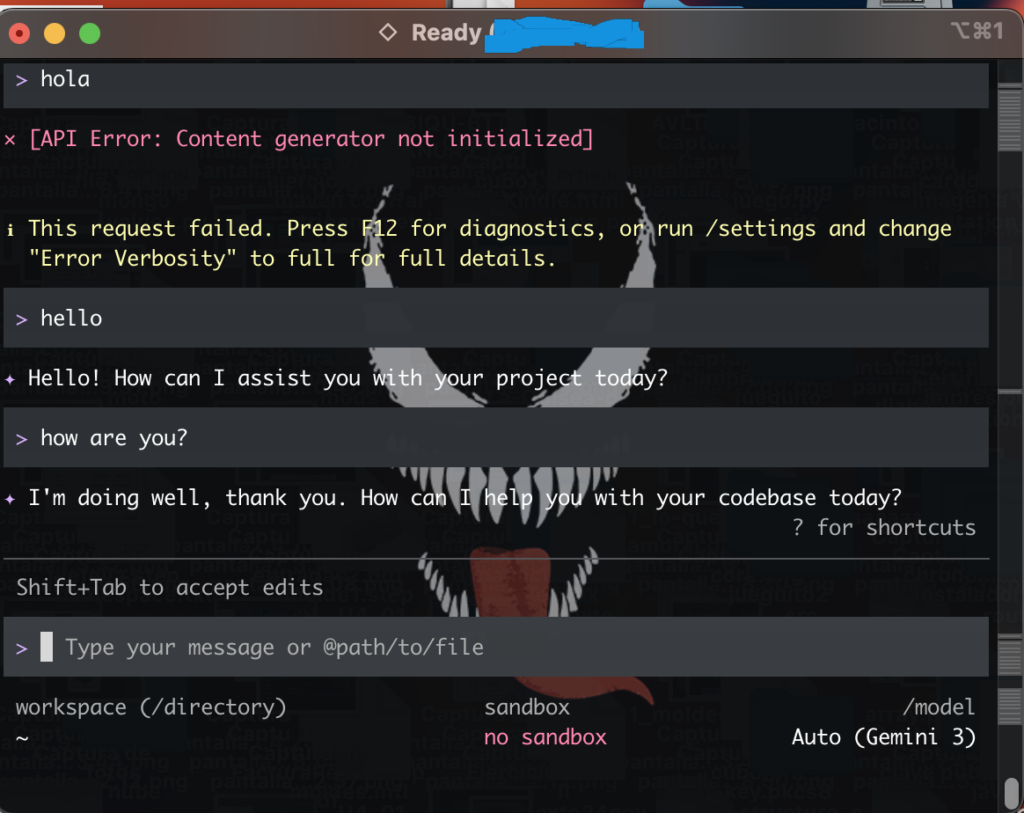
the command in console (alternative to ‘gemini’ command) (complete name original command):
npx @google/gemini-cli "hello"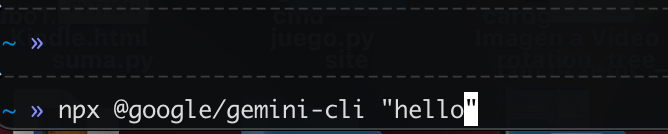
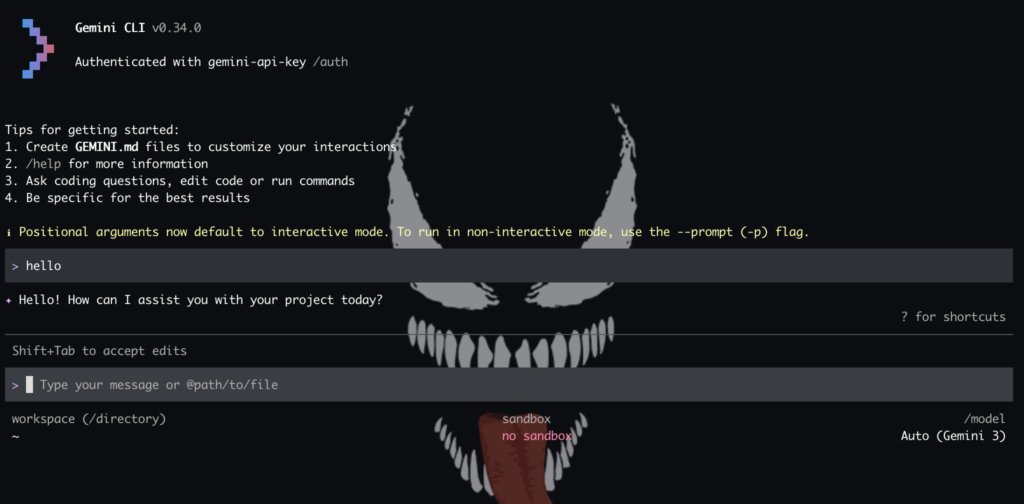
config command directily (this to use in .zshrc or .basrc)
npm config get prefixgeneralty the response is:
/usr/local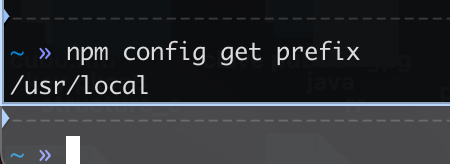
remember use /bin at the end in a environment variable in .zshrc or .bashrc and reload with ‘source’ command
command CLI
gemini "hello"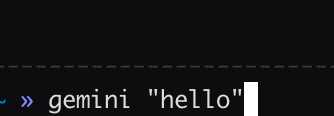
1 thought on “Talking to Google Gemini from a terminal in Linux/macOS”
Comments are closed.