
Project Scaffolding (Structural)
It creates the foundation for the entire application. It defines where resources, tests, and source code go.
When you use a scaffolding tool, you give it a few minimal parameters (such as the name of a database or the name of an entity) and the tool “draws” for you.
- The folder structure.
- Configuration files.
- Basic classes (Models, Controllers).
- Basic CRUD (Create, Read, Update, Delete) operations.
It is a technique that allows the automatic generation of the basic structure of a project or a specific functionality using software tools.
Scaffolding in software supports the developer by providing the repetitive code (boilerplate) so they can focus on the business logic.
It doesn’t build the rooms for you (it doesn’t create the controllers or entities for you).
Sometimes it generates more code than you actually need.
All of a team’s projects follow the same structure.
You avoid syntax errors in repetitive tasks.
A Maven Archetype is, simply put, a predefined template for creating projects.
The archetype is the “template” and the command is the tool that uses it.
The archetype is the “plan” or “model” that already defines where the rooms will go.
When you run the command, Maven automatically generates the entire folder structure and the initial pom.xml file for you.
the goal is to ensure that all developers on a team use the same folder structure (for example: src/main/java, src/test/java).
You don’t have to manually create each directory or copy and paste the basic dependencies into the pom.xml.
Automatic configuration: Configures the Java compiler, encoding (UTF-8) and necessary plugins from the very first second.
The command
-
mvn archetype:generate - is the instruction you type in the terminal. By running it, you are telling Maven: “Hey, I want to generate a new project based on a template.”
The Archetype (The Template)
This is the ID of the template you want to use.
There are thousands of archetypes on the internet (for pure Java, for Web, for Spring, for projects with specific databases, etc).
When you run the command, Maven will ask you which archetype you want to use, or you can pass it directly as a parameter:
mvn archetype:generate -DarchetypeArtifactId=maven-archetype-quickstartCommand: mvn archetype:generate
Archetype: maven-archetype-quickstart (this is the name of the “quickstart” template).
Interactive Mode: The terminal will start asking you for information to customize your project:
- groupId: The name of your organization (e.g., com.mycompany).
- artifactId: The name of your project (e.g., my-rest-api).
- version: You almost always press Enter to leave 1.0-SNAPSHOT.
- package: The name of your Java class package.
Although you can create a Spring Boot archetype with the command mvn archetype:generate, the Spring community created its own more powerful tool: Spring Initializr.
- The Maven archetype is a snapshot: if the template is outdated, your project will launch with outdated versions.
- Spring Initializr is dynamic: it always provides you with the latest version of Spring Boot and the most stable dependencies.
Spring Initializr is Spring’s official tool for quickly and easily generating the scaffold of your projects.
Spring Initializr is basically a dynamic project generator that replaces traditional archetypes for the Spring Boot ecosystem.
When using Spring Initializr (either on its website start.spring.io or via terminal), you define:
- Project Manager: You can choose between Maven (generates the pom.xml file) or Gradle.
- Language: Supports Java, Kotlin, and Groovy.
- Spring Boot Version: Allows you to always choose the most stable and up-to-date version.
- Metadata: Your project name (artifactId), your group (com.example), and the Java version (17, 21, etc.).
- Dependencies (Starters): This is the most powerful part. You can search for and add modules such as:
- Spring Web: To create your REST API.
- Spring Data JPA: To connect to databases.
- Lombok: To reduce repetitive code (getters/setters).
ways:
- Via Web: Go to start.spring.io, fill out the form, click “Generate,” and download a .zip file.
- Via IDE: IntelliJ IDEA, VS Code, and Eclipse have Spring Initializr integrated. You can create the project without leaving the editor.
- Via Terminal (cURL): You can request the service and get your project instantly.
When you generate a project using an archetype, Maven looks for three things:
- Directory structure: Create the necessary folders for code, resources, and tests.
- The initial pom.xml file: This already includes the groupId, artifactId, and dependencies chosen by the archetype author (for example, JUnit for testing).
- Example code: Many archetypes include an App.java class or a basic controller so you can run the project right away.
- Maven Archetype: This is a generic Maven tool. There are archetypes for web applications, Android, Jenkins plugins, etc.
- Spring Initializr (start.spring.io): This is a much more advanced and specific tool for Spring. Instead of a static template, it generates a customized project based on current Spring versions and the dependencies you choose in real time.
Bash things to know:
- The backslash \ at the end of a line is called a line continuation character
- He tells the terminal: “Don’t run the command yet, what follows on the next line is part of the same thing”
- It’s used to make long commands readable. Without the backslashes, you’d have to write everything on a single, very long, and difficult-to-read line
mvn archetype:generate -DgroupId=com.leibnix -DartifactId=api- It’s the same as this (more organized):
mvn archetype:generate\-DgroupId=com.leibnix\-DartifactId=api
- It’s the same as this (more organized):
- D comes from Define
- The -D is used to pass System Properties (parameters)
- It is always attached to or followed by the property name: -Dname=value
- -d (in other commands like ls -d): Can mean Directory
- -d (in curl): This stands for Data. It is used to send information to the server (in this case, the Spring servers) indicating which dependencies and project name you want.
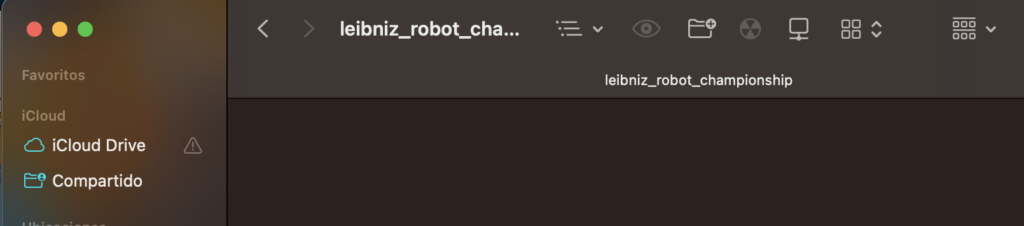
First, there’s nothing in the folder:

Copy and paste the following command; it’s a Maven archetype:
mvn archetype:generate \
    -DgroupId=com.example \
    -DartifactId=my-project \
    -DarchetypeArtifactId=maven-archetype-quickstart \
-DinteractiveMode=false- Replace com.example with your GROUP ID name
- Java uses reverse domain notation: com.example
- my-project by your artifact
- The -DinteractiveMode parameter is a Maven “flag” or setting that determines whether the program should stop to ask you questions or whether it should do everything automatically
- interactiveMode=true (The default value), If you don’t specify anything, Maven assumes it’s true
- The terminal will stop and ask you one by one: “What is the groupId?”, “What is the artifactId?”, “Which version do you want?”
- interactiveMode=false (Automatic Mode), This is what we usually use when we already know what values we want
- Maven doesn’t ask any questions. It takes the values you passed in the command (like -DgroupId=com.leibnix) and generates the project immediately
- In Maven terminal commands, the -D prefix is used to define a “Property”
- It’s like declaring a variable for that command
- That’s why we wrote -DinteractiveMode
You will see something like the following:
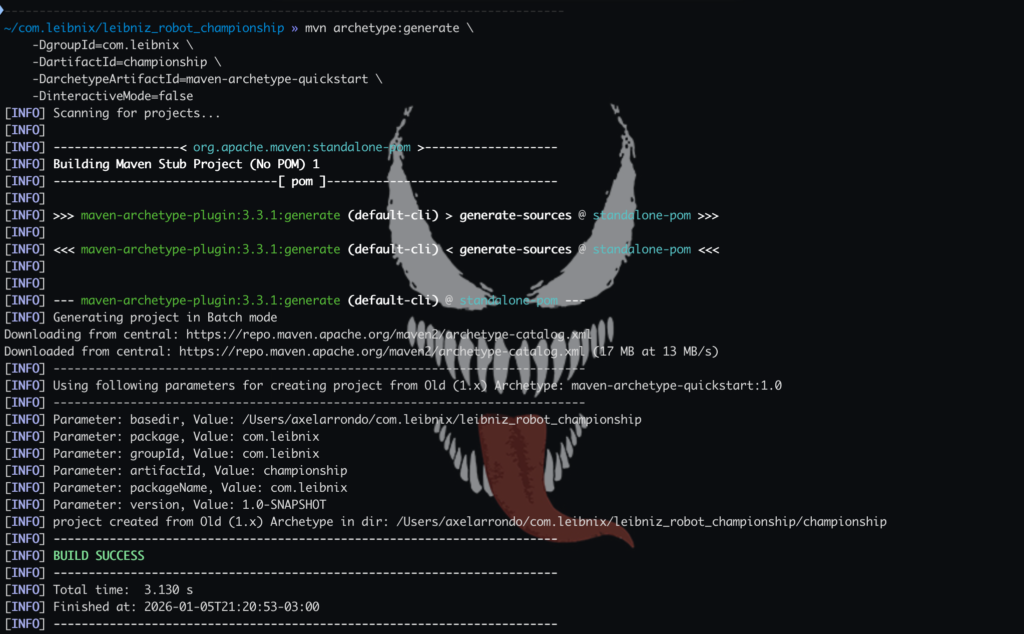
You will now see a folder created:

Open that folder created with an IDE:
In this example I’m going to use “visual studio code”

You will see something like the following, with the directories and files already created:
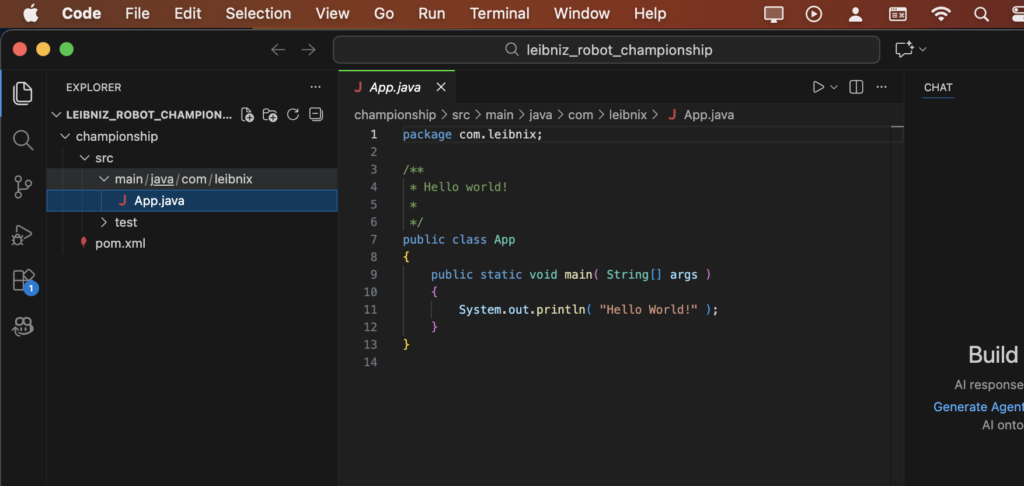
directories and files:
src/main/java: Where your source code (Controllers, Services) will go
src/main/resources: Contains the application.properties file to configure the database or port
pom.xml: The Maven configuration file where dependencies are managed